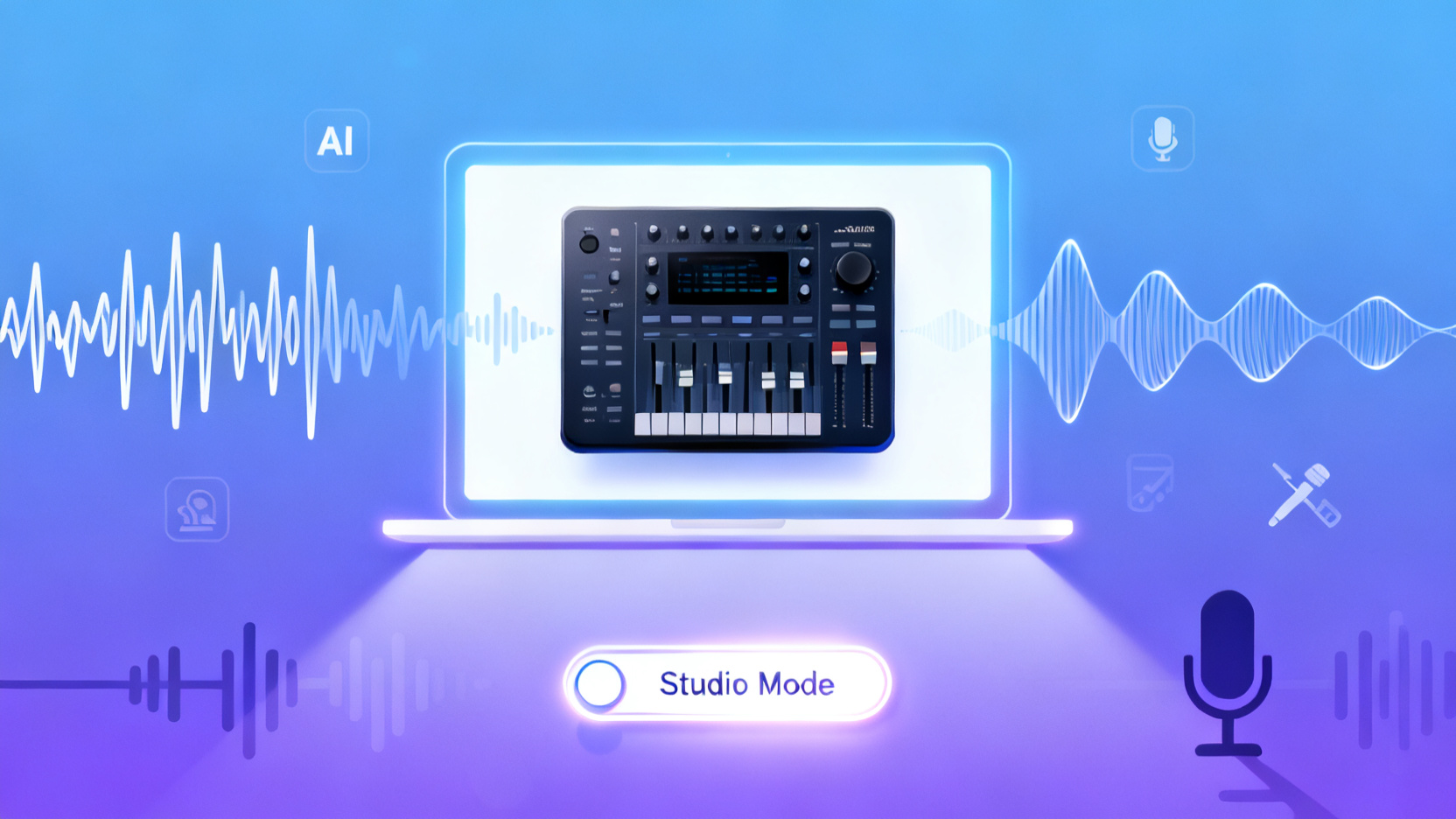
Most creators waste hours editing AI voiceovers. Murf.ai’s hidden Studio Mode automatically trims silences, adjusts pacing, and applies studio-grade polish—no DAW needed. Here’s how to unlock it.
Spent hours scrubbing through AI voiceovers to cut awkward pauses, fix robotic cadence, or normalize volume? You’re not alone. Most users treat Murf.ai like a basic text-to-speech tool—upload, generate, download—and miss its most powerful feature: Studio Mode, a hidden post-production engine that auto-edits your voiceover like a pro audio engineer. This is a game-changing example of AI automation workflows and one of the most underused AI tools for content creators.
Before vs. After: Raw AI Voiceover vs. Studio Mode Polish
Before: You export a flat, monotonous audio file full of dead air. Then you fire up Audacity or Descript, manually delete silences, compress dynamics, and tweak speed—easily burning 30+ minutes per 5-minute script.
After: With Studio Mode enabled, Murf.ai delivers a polished, broadcast-quality track in one click—silences trimmed, pacing optimized, and EQ balanced. Zero external editing required. For affordable AI tools for solo content creators, this eliminates the need for costly post-production software.
How to Unlock Murf’s Auto-Editing Superpower for Content Creators
- Enable Studio Mode in Project Settings: Before generating, click the gear icon next to your voice selection. Toggle on “Studio Mode” (it’s off by default and buried under “Advanced Audio”).
- Use SSML-Like Pauses for Natural Flow: Instead of typing “…”, use Murf’s native pause syntax:
<break time="500ms"/>. Studio Mode respects these cues and won’t over-trim intentional dramatic pauses. - Select “Broadcast” Preset: Under Studio Mode, choose the “Broadcast” profile—it applies light compression, high-pass filtering, and -1dB peak limiting, mimicking podcast-ready mastering.
- Batch-Generate with Consistent Settings: Save your Studio Mode config as a template. Reuse it across projects to maintain brand-consistent vocal tone without re-tweaking.
Real Example: From YouTube Script to Published Video in 8 Minutes
A solopreneur creates a weekly LinkedIn explainer video. Previously, they’d spend 45 minutes editing Murf output in CapCut. Now:
- Writes script in Notion
- Pastes into Murf with
<break/>tags for emphasis - Generates with Studio Mode + Broadcast preset
- Downloads clean MP3 and drops it straight into Canva
Total time saved: 37 minutes per video. Over a month, that’s 2.5 hours reclaimed—enough to write two extra scripts. This workflow is ideal for best AI tools for LinkedIn content creators looking to scale without sacrificing quality.
Power users often rely on this technique because it dramatically improves output quality while reducing manual effort.
Tweetable Insight
Tip: “Most people use AI voice tools wrong. The real power isn’t in generation—it’s in auto-editing. Murf’s hidden Studio Mode cuts post-production by 90%.”
Try It Yourself
If you want to test this workflow yourself, you can explore the tool here and try the same trick. Perfect for AI tools for content creators and AI automation workflows that actually save time.
Frequently Asked Questions
Is Studio Mode available on all Murf.ai plans?
Can I use Studio Mode for podcast intros or ads?
Does this work with non-English voices?
How does this compare to editing in Descript or Audacity?


Noah
AI Operations Manager
Updated Apr 17, 2026